Arrange your work
A workspace brings sessions and tools together. Use tabs and supported split layouts to keep related terminals, remote desktops and tools visible, such as an application shell beside its logs or graphical desktop sessions alongside SSH hosts. Saved workspace arrangements are different from the processes running on the remote servers.
- Open the hosts you need and switch to the workspace.
- Use its layout or split controls to arrange sessions.
- Hover over an opened session or tool tab to inspect its live floating preview before switching focus.
- Select a pane before typing; verify its host and account.
- Save a layout or template where that option is available.
- When reopening a workspace, confirm the session state rather than assuming every old connection resumed.
Live session and tool tab previews
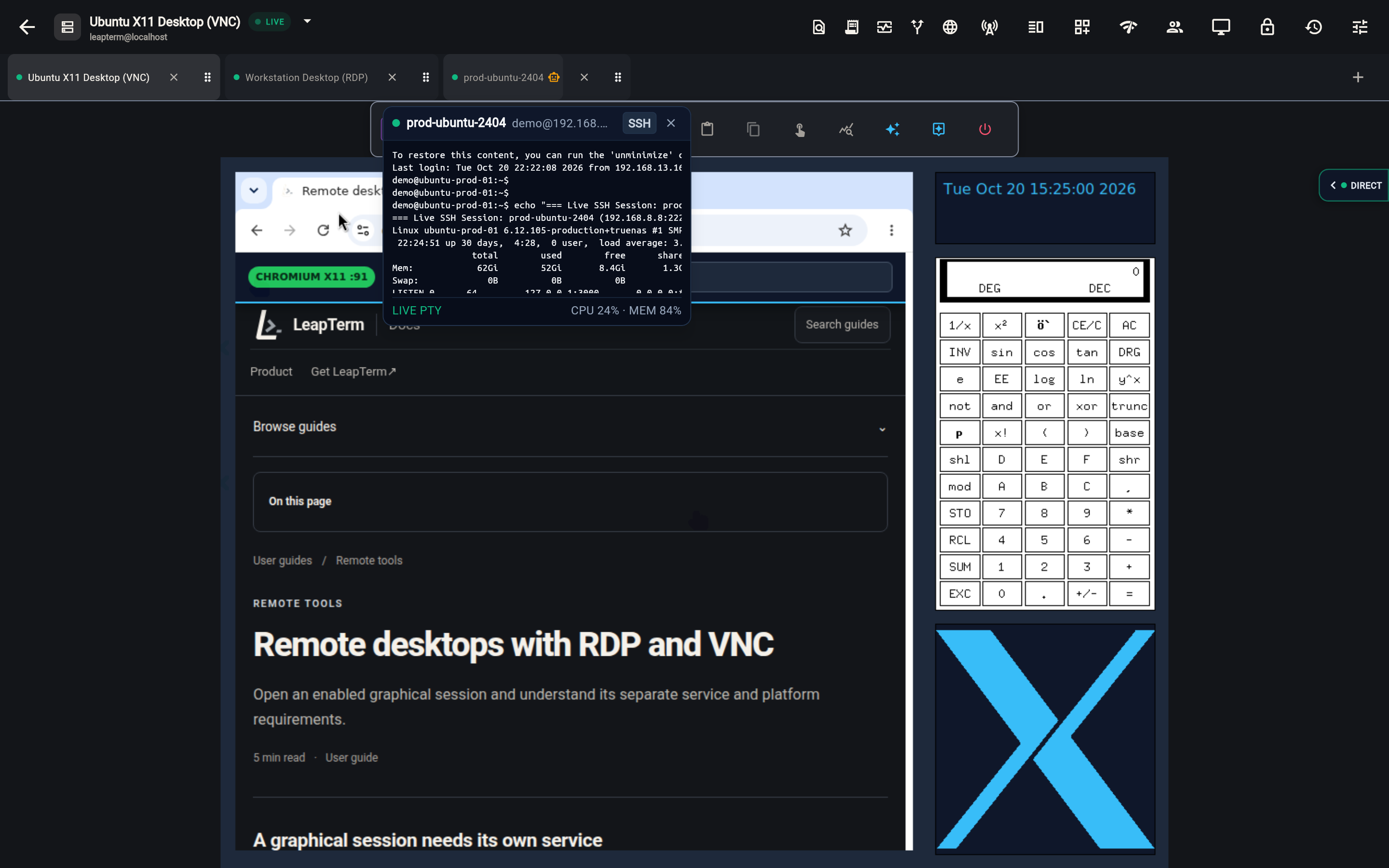
When multiple SSH, VNC (VeNCrypt), RDP (NLA) and Browser tabs are open at the same time, hovering the mouse pointer over any session tab in the top workspace bar—or over a tool tab inside a session—opens a taskbar-style floating preview card that streams the live content of that tab without leaving your active pane.
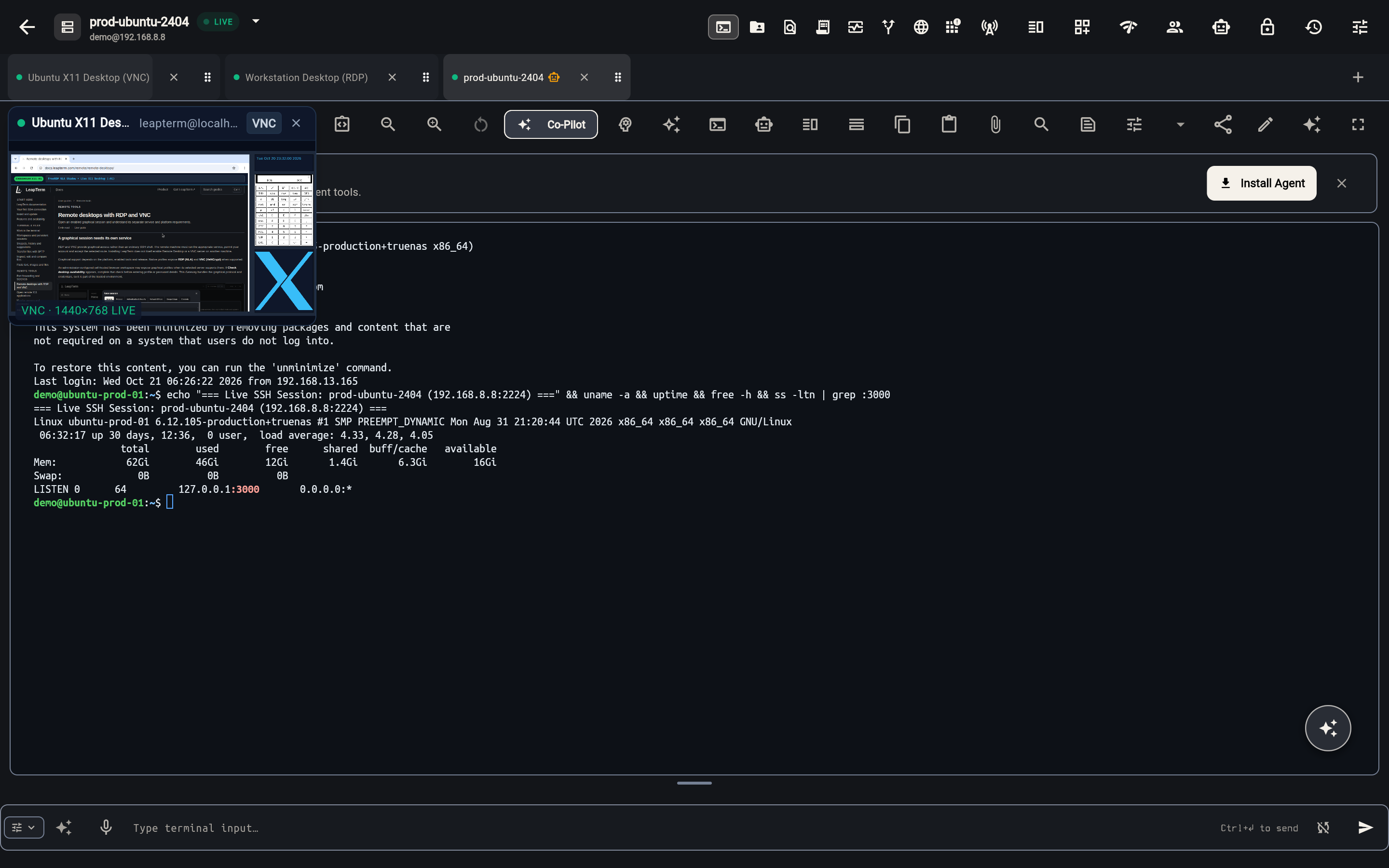
Moving the pointer directly from one tab to an adjacent tab switches the floating preview card immediately without closing and reopening the overlay, letting you scrub across live VNC and RDP desktop streams or multiple SSH hosts in place.
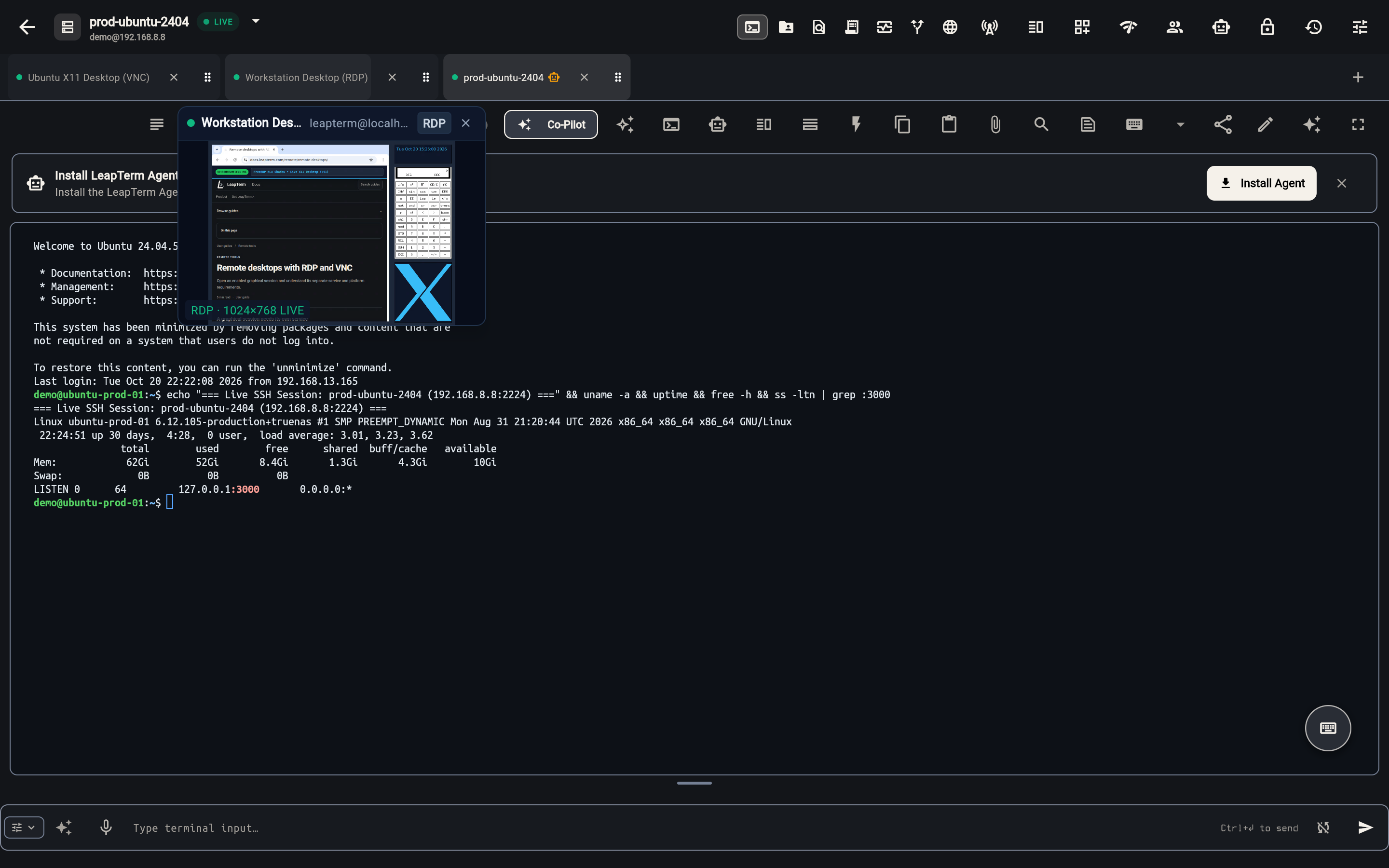
Inside a connected host workspace, hovering over tool surface tabs such as Browser, SFTP Files, AI Tasks or Stats previews that surface's live state—including the rendered viewport and HTTP status of the in-app remote browser.
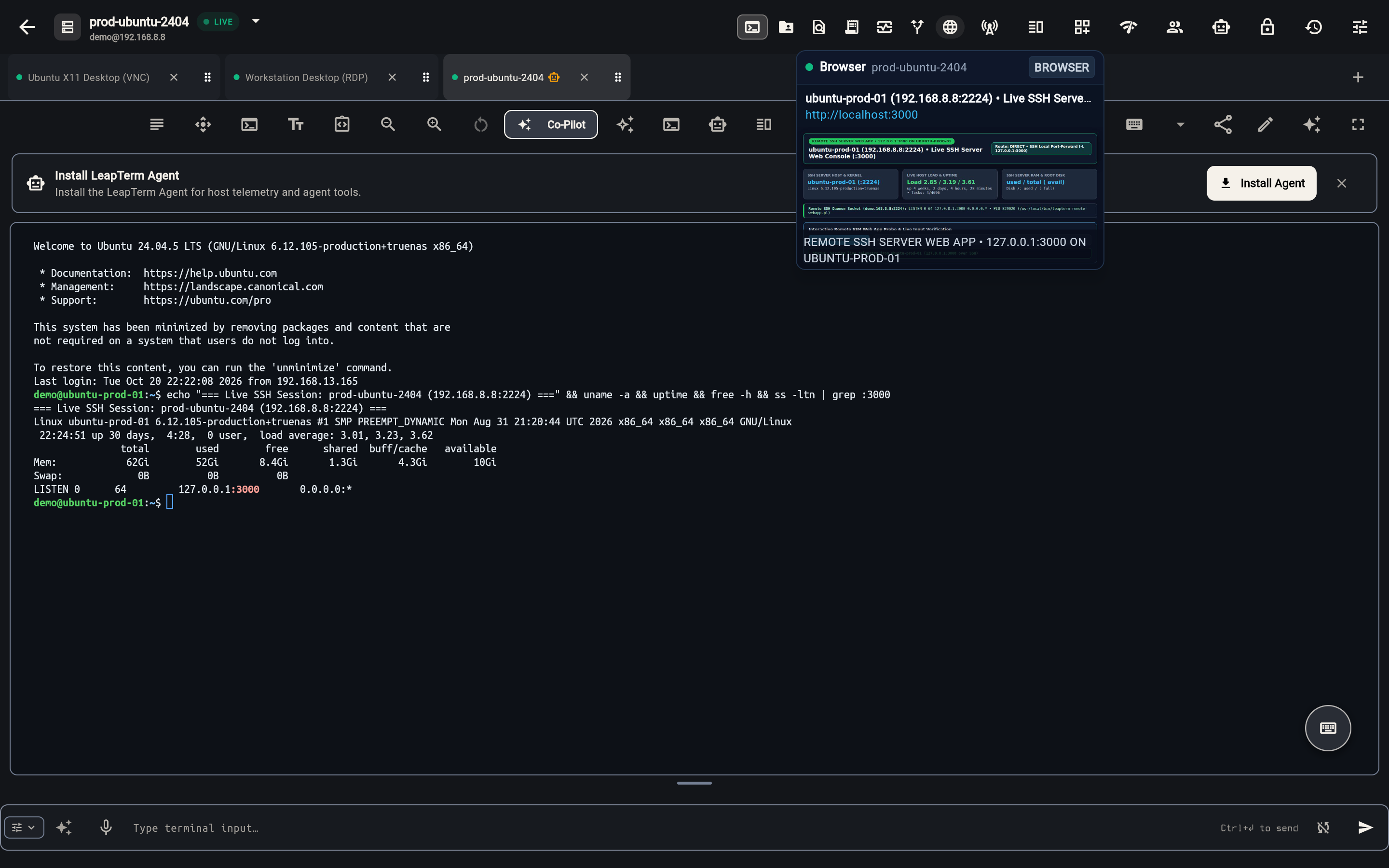
While working inside a full-screen VNC or RDP graphical desktop, hovering over an SSH session tab in the top bar streams the live terminal tail and host telemetry (CPU and MEM utilization) right above the desktop canvas.
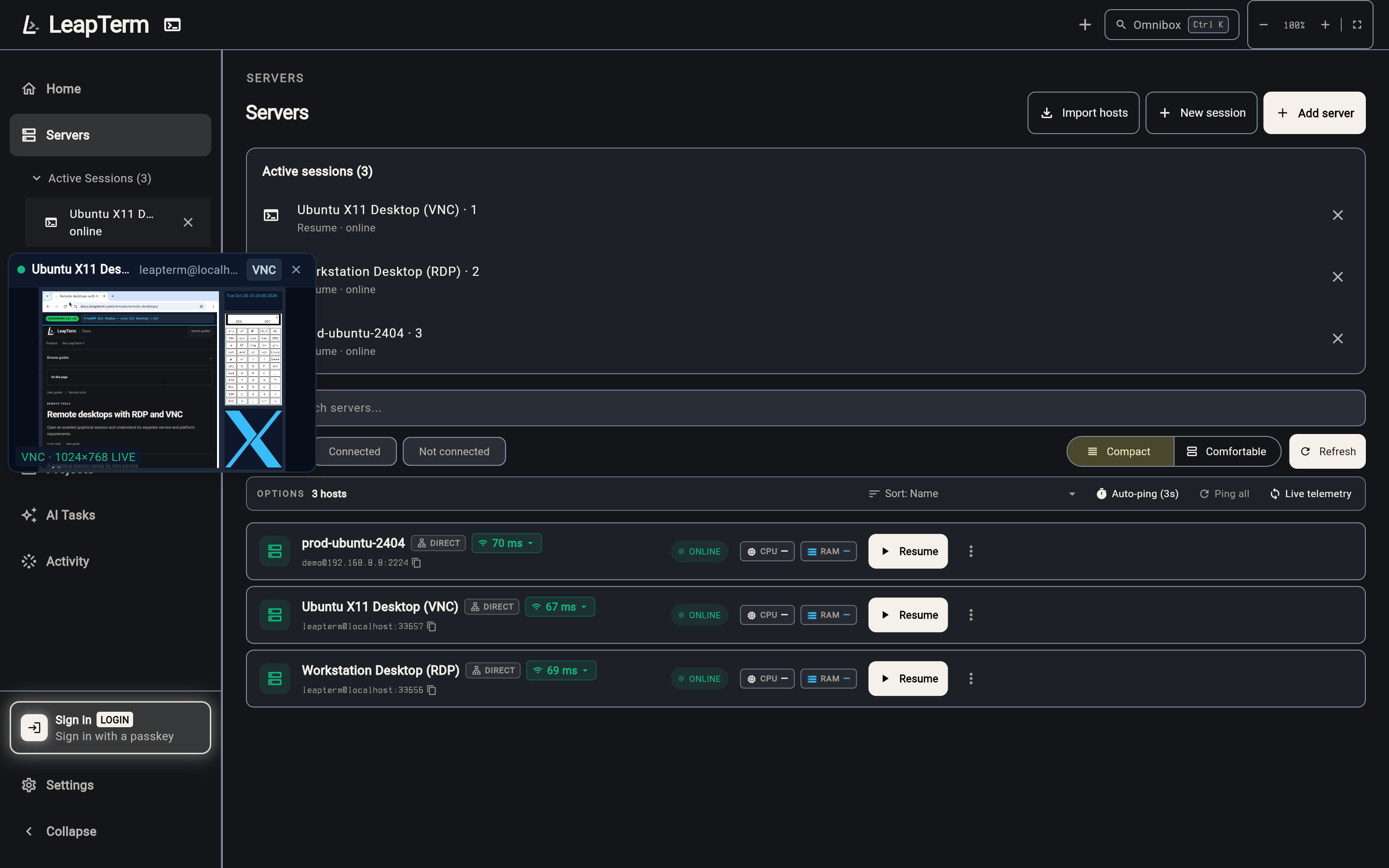
On the Servers screen and in the left navigation rail, hovering over any row under Active Sessions opens the same live floating preview so you can inspect a running desktop or terminal session before clicking to resume it. Live preview streams attach only while a tab is hovered and pause immediately when the pointer leaves, keeping background client CPU and memory usage minimal.
Chrome-style draggable tabs and floating windows
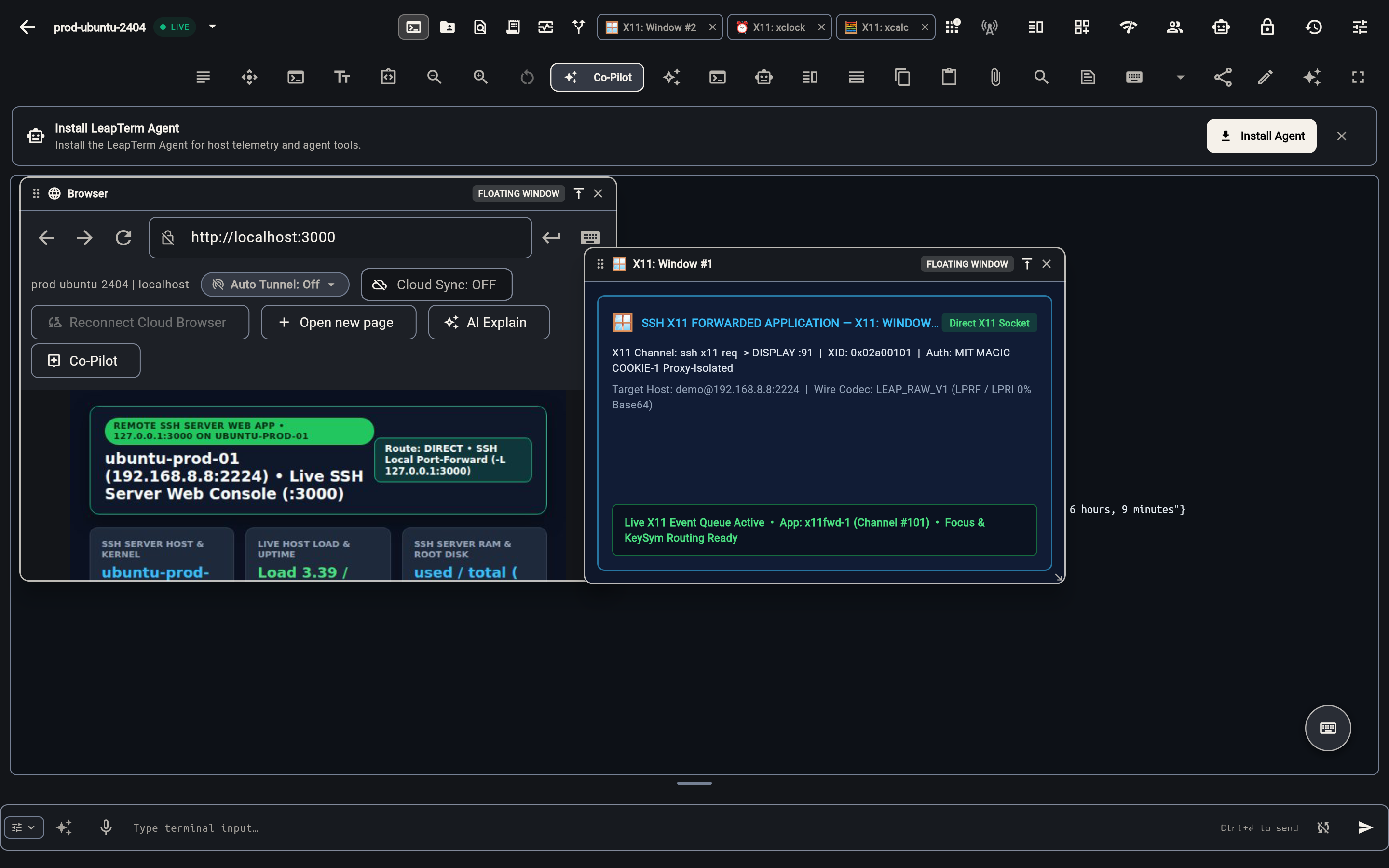
Both top-level Session tabs and inner App / surface tabs (such as Terminal (TTY), SFTP Files, Browser, and per-application X11 tabs like 🪟 X11: Window #1) support Chrome-style drag gestures:
- Drag horizontally to reorder: Drag any session tab or app/surface tab left or right along the tab bar to adjust its position in place.
- Drag downward to tear off into a floating window: Drag any app tab (such as Browser or an X11 application tab) or session tab downward out of the tab bar to detach it into an independent, draggable, resizable floating window over your active terminal or desktop workspace.
- Drag back up to re-dock: Drag a floating window's header bar back up to the top tab bar (or click its Dock to tab row button) to snap it right back into the tab row.
What a persistent session means
On a compatible server, LeapTerm can attach an SSH shell to tmux to keep it separate from the current network connection. Enable Attach to Tmux session in the SSH host settings where supported; it is off by default. Reattaching reconnects you to that remote session instead of necessarily starting the command again.
Persistence depends on the remote multiplexer being installed and usable, the account retaining access, and the server and processes remaining alive. It does not protect against a server reboot, an administrator stopping the process, or resource exhaustion.
Reconnect safely
After an interruption, check the connection status and reattach to the intended session where supported. Inspect the remote state before repeating a command: a deployment or file operation may have completed while the connection was down.
Closing a tab, ending a share, revoking access and terminating a remote process are different actions. Do not use a disconnected viewer as proof that a background job stopped. For a task that must be stopped, verify its state on the remote machine through an authorized connection.
Cross-device continuity
Workspace continuation uses an independently enrolled leap-agent on the target and a supported installed app trusted for that agent. The saved protected session's original runtime must still be available. Ordinary SSH and tmux reconnection are separate from the protected Continue workflow.
- Open Recover workspace sessions in the workspace and unlock recovery or the vault when prompted.
- For another device, configure Cloud sync settings and enable Sync this workspace across devices. Review the included content in Sync this workspace?, then choose Approve workspace sync. Wait for Saved to cloud (encrypted).
- On the destination, use the same account and independently verified enrollment for the original agent. Select the saved pane and choose View here to inspect it or Continue here to request control. Recover on this device also reattaches for viewing.
- Check the recovery result and current display. Wait for input permission before typing.
Workspace sync carries saved layout and session references and retains local editor drafts with their original file contents in encrypted workspace records. Remote files change only through an explicit Save action. Each device still needs its own trusted agent access. Follow active device switches the selected pane and does not itself transfer input control. If the app reports Trusted app required, continue in an enrolled installed app.
For an agent-backed in-app browser, Continue from here reattaches to the original live page, with its current DOM and form state, when the matching agent runtime and page remain available. A saved address or checkpoint cannot recreate that live state after the page ends. If recovery reports that the original session or page is unavailable, inspect the remote state and explicitly open a new session or page when needed.
See Live Share for collaboration and troubleshooting for reconnection problems.