
When X11 is useful
Native X11 forwarding is a graphical workflow associated with a remote SSH session. It can bring supported application windows to the client's display without treating the whole remote desktop as one screen. The application still runs on the remote machine.
The server needs the required graphical software and forwarding permissions. The native client needs a supported display environment, and the active connection must advertise X11 support. A working text terminal alone does not establish those prerequisites.
Open an application
- Connect to a host whose administrator has enabled the required X11 workflow.
- Check that X11 or remote graphical tools are available for the active session.
- Launch the intended application in the enabled SSH session. For a supported web link, use the terminal link menu's Open with server browser action when it appears.
- Keep the terminal session and graphical window associated with the correct host.
- Close the application normally when finished and check whether its remote process has ended.
Where a remote-browser action is available, remember that the browser runs in the remote environment. Its cookies, sign-ins and downloaded files belong to that environment, not automatically to your local browser.
Multi-window SSH X11 forwarding, per-app tabs, and cookie isolation
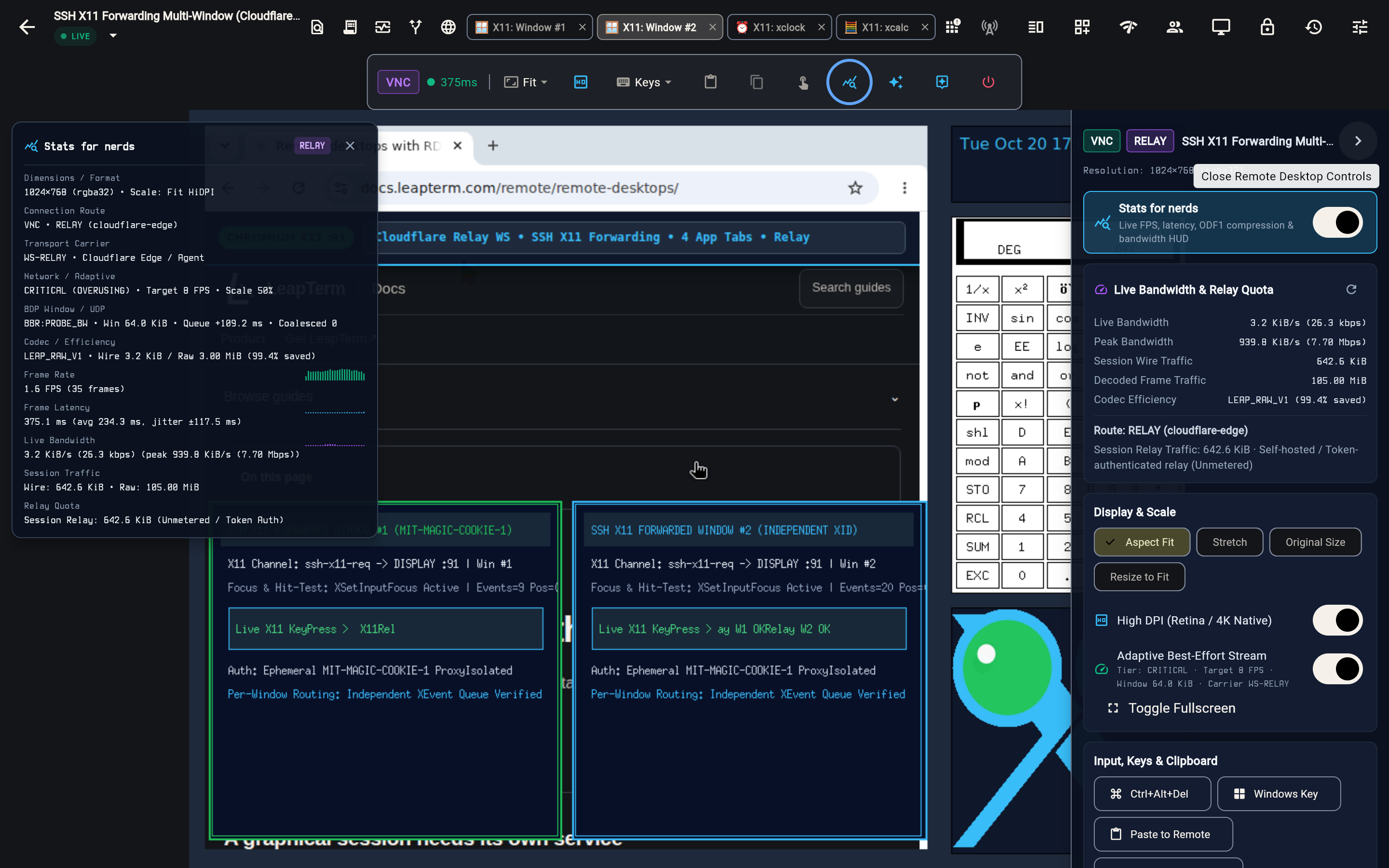
When forwarding multiple X11 application windows over SSH, LeapTerm's X11ForwardingEngine provisions an ephemeral 128-bit MIT-MAGIC-COOKIE-1 proxy token for the remote x11-req channel and rewrites the initial X11 setup packet before forwarding to the local X server, keeping the client's real .Xauthority cookie isolated from the remote host. Each top-level window opened by a remote application (or across multiple remote X11 processes) receives its own X11 window ID, independent ButtonPress / KeyPress event delivery, and its own per-application tab (🪟 X11: Window #1, 🪟 X11: Window #2, ⏰ X11: xclock, 🧮 X11: xcalc) in the session's workspace tab bar.
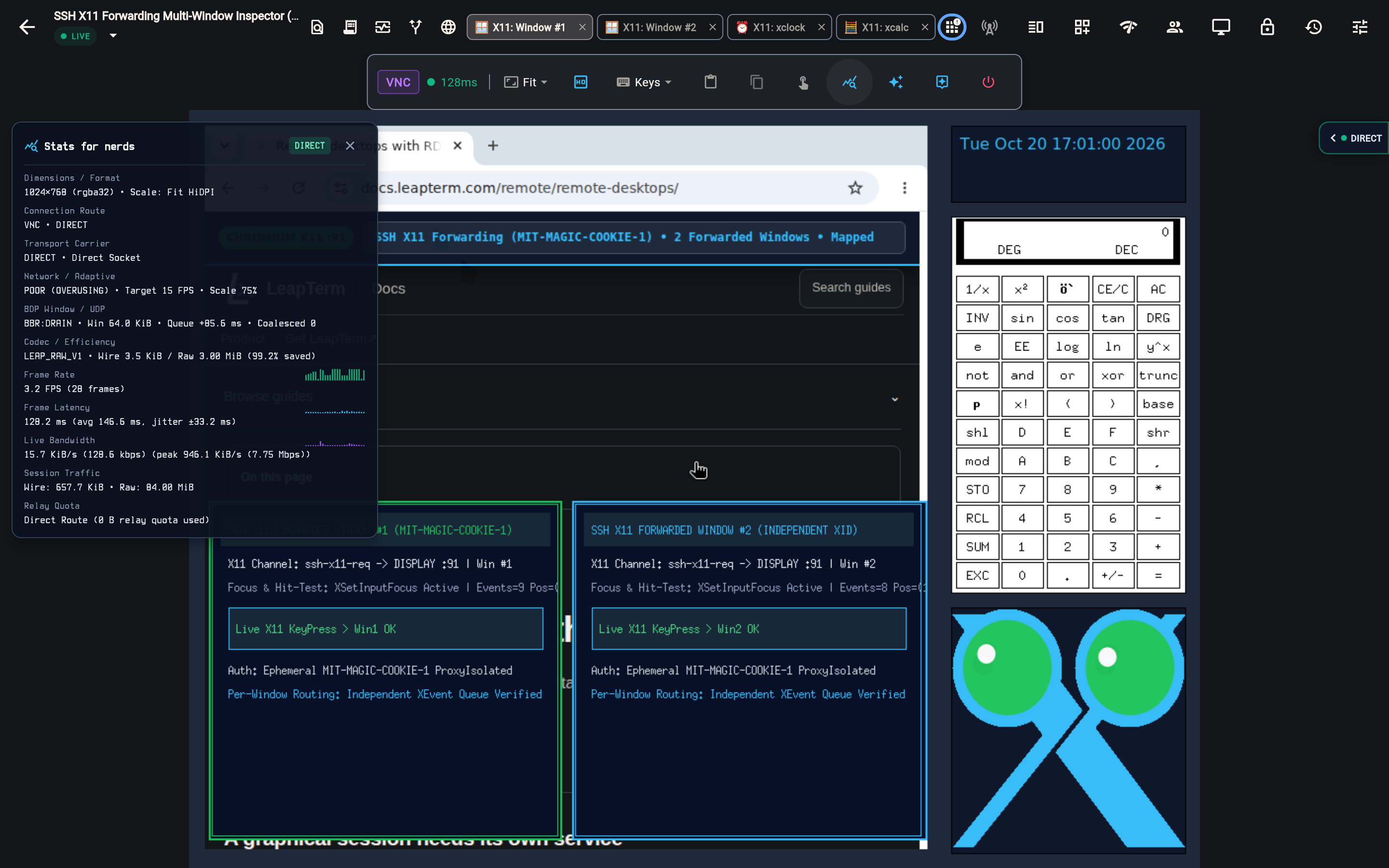
When connecting through a configured Cloudflare Relay or enrolled Connector (RELAY (cloudflare-edge)), SSH X11 forwarded windows and their per-application tabs stream over the LEAP_RAW_V1 (LPRF / LPRI) raw binary codec with full multi-window focus and keyboard/mouse routing.
Use persistent X11 in the browser
Persistent X11 access, where included in your release, uses the installed Protected workspace browser client and an enrolled customer agent. Use the approved public enrollment for the persistent X11 target, independently verify the agent public key and obtain approval of this device's exact local key. A configured Gateway alone does not establish that trust.
Choose Attach existing session for the original graphical runtime. Wait for its complete display and use Continue here to request control; a viewer cannot send input without the current control grant. Start new session explicitly is a separate action. See remote desktops for the enrollment and attachment steps.
Security and compatibility
Use graphical forwarding only with trusted remote applications and hosts. A forwarded window is not proof of isolation from other processes in the remote graphical environment.
Do not make a display service publicly reachable as a workaround for missing support. Ask the administrator to check permissions and dependencies, and use remote desktops when that better matches the service offered.
Closing a connection does not guarantee that every detached remote process stopped. Confirm remote state before reopening or repeating an action.